Import Options
All import sources offer a set of options that allow you to define the behavior of the particular import source.
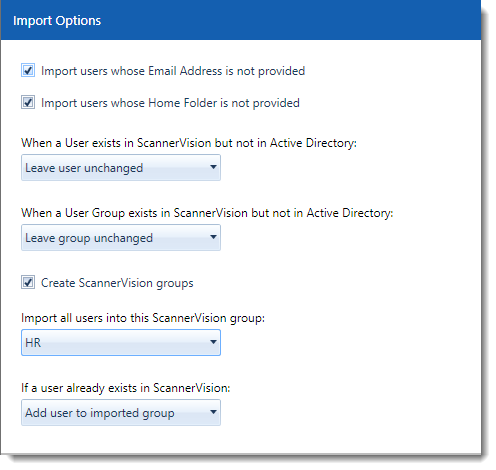
Import users whose Email Address is not provided
Select this option to import users who do not have an email address specified in the import source data.
Import users whose Home Folder is not provided
Select this option to import users who do not have a home folder specified in the import source data.
When a User exists in ScannerVision but not in “X”
When a user exists in the ScannerVision Users table that does not exist in the import source data you have three options:
| Delete user | Delete the existing user. |
| Disable user | Disable the existing user. |
| Leave user unchanged | The existing user data is not modified. |
See notes below.
When a User Group exists in ScannerVision but not in “X”:
When a user group exists in the ScannerVision User Group table that does not exist in the import source data you have three options:
| Delete group | Delete the existing group. |
| Disable group | Disable the existing group. |
| Leave group unchanged | The existing group data is not modified. |
See notes below.
Create ScannerVision groups
Select this option if you want user groups to be created automatically. If you disable this option and you also do not provide a group under the “Import all users into this ScannerVision group” option, users will be imported in the “Ungrouped” group (unless the group exists already).
Import all users into this ScannerVision group
If you provide a group and disable the “Create ScannerVision groups” option, all users will be imported in this group unless the group they belong to exists already and it is different from this one. In this case the group as it appears in the import data is applied. This group could therefore be seen as the “fallback” group when the imported user does not have a group specified.
If a user already exists in ScannerVision
If the group specified in the import data differs from that of an existing user in the Users table you have 3 options:
| Add user to imported group | Add the user to the imported group in addition to the group(s) he/she belongs to already. |
| Move user to imported group | Remove the user from the groups he/she currently belongs to and move them to the group specified in the import data. |
| Leave user in current group(s) | Leave the user in the group(s) he/she currently belong and ignore the group specified in the import data. |
Notes
When importing users when there are already users in the ScannerVision database you should take note of a few things. Let’s say you are importing users from 2 CSV files that contain users from the Human Resources and Sales departments. Further, let’s assume you have configured the Sales import to delete users who don’t exist in the CSV file. What is going to happen when you execute the HR import and then the Sales import? All users in HR will be deleted - assuming no users belong to both departments. Since the Sales import executes after the HR import it is going to find all the HR users existing in the Users table but none of them existing in the sales CSV file. Therefore all HR users will be deleted. If you have selected non-existing users to be disabled, all HR users will be disabled.
To avoid unintended consequences it is recommended to leave user and groups unchanged when you have multiple import sources or when you create users manually and also import users. It is only when you want to mirror a single import source such as AD that you would select either the delete or disable options for users and groups.