Operability
ScannerVision allows for single sign-on with Equitrac when both the Equitrac and ScannerVision MFP clients are installed on an MFP. What this means is that when a user has been authenticated by the Equitrac client the user will also be authenticated in the ScannerVision client. This allows the user to sign in with the Equitrac client and then to switch to the ScannerVision client without the need to sign in again on the ScannerVision client.
This single sign on is made possible with the use of a facility offered by Equitrac server where it would call a user defined application for every user that signs in using the Equitrac MFP client application. When the Equitrac server calls the external application it passes it the path to an Xml file that is generated by the Equitrac server. The Xml file contains information about the user as well as the action that was perform i.e. sign in or sign out.
When ScannerVision is installed an application called EquitracNotifier.exe is installed in the root of the ScannerVision installation directory. This is the application that must be called by the Equitrac server to authenticate users in ScannerVision. The Equitrac Notifier application does not need to be installed on the same server as ScannerVision and it offers a facility that makes it easy to port it to other machines.
Equitrac configuration
A discussion of the configuration of the Equitrac system is beyond the scope of this manual. Please refer to the Equitrac documentation for details. Pay particular attention to how command line arguments are passed to external applications.
Command line arguments
When the Equitrac Notifier application is started without command line arguments the graphical user interface (GUI) is shown. The application accepts two command line arguments that have to be provided in the correct sequence. These arguments are “–file” followed by the fully qualified path to the Xml file generated by the Equitrac server. Below is an example of how the Equitrac Notifier application is called with command line arguments:
$Path$\EquitracNotifier.exe --file "C:\SomePath\EquitracActivateDevice.xml"
Note
The example above only shows the pattern for calling the Equitrac Notifier application with command line arguments. The actual path to the application and xml file will be different for actual installations.
Operation
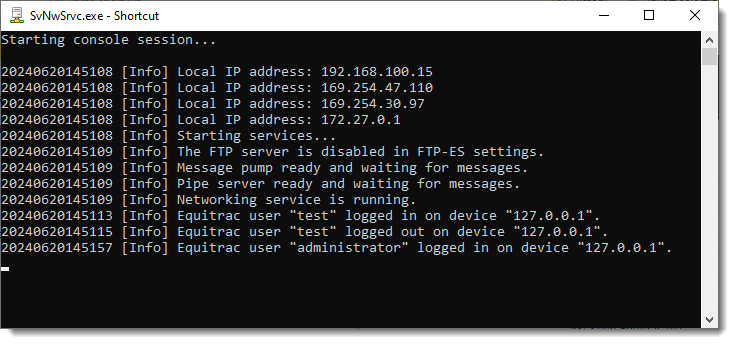
When the EquitracNotifier.exe is launched with the command line arguments shown above no graphical user interface is shown. In this mode the application reads the xml file, passes the relevant information to the ScannerVision Networking Server and if configured to do so deletes the xml file and then shuts down. If you are running the ScannerVision Networking Server in console mode you will see log output in the console window of all Equitrac activity, as shown below:
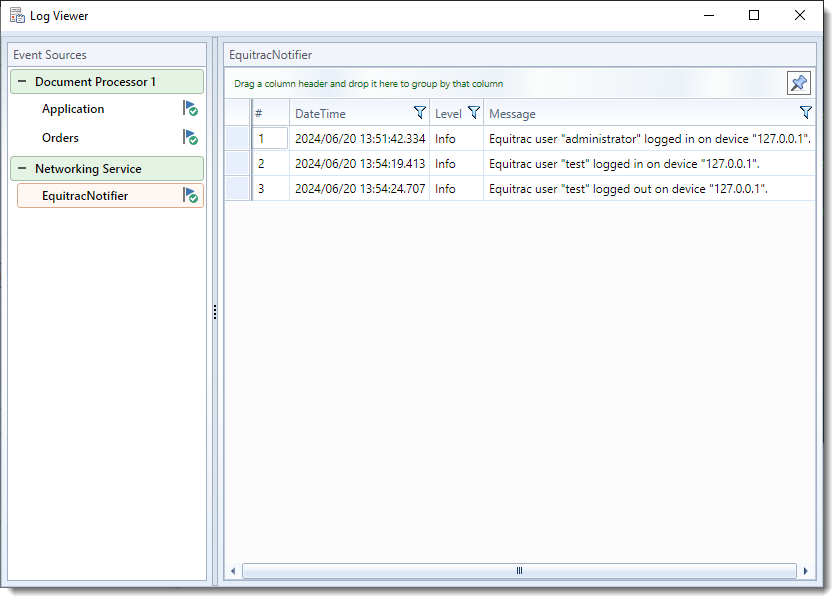
The Processing Engine User Interface’s log window also shows Equitrac sign in/out activity:
When the EquitracNotifier.exe is launched without command line arguments only the GUI is shown. With the GUI you can configure various settings which are discussed in the Equitrac Notifier Setup section as well as perform test log ins and log outs.
Running instances
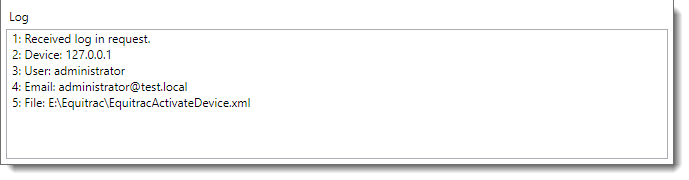
When the Equitrac Notifier GUI is open and a second instance of the EquitracNotifier.exe is launched on the same computer with command line arguments (e.g. a user signs in to Equitrac) the details for the user signing in or out is displayed in the log window of the GUI as shown below:
Note
Both the GUI instance and the command line instance must be run on the same computer. You cannot therefore view log activity of remote instances.