Managing User
Users can belong to one or more groups or to none at all. Putting users in groups means that you can manage them on a group level. There are two aspects which can be controlled on a group level:
- Activation/Deactivation
- Templates
You can choose the sequence in which you want to configure users. You could create the groups first and then the users or you could create the users first and then the groups and then assign the users to groups afterward.
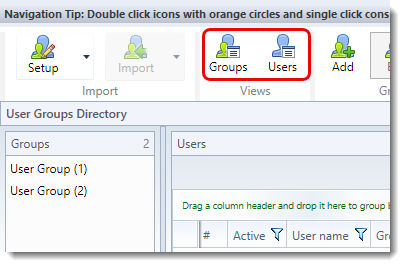
The user settings screen can be viewed in 2 modes namely “Groups” and “Users”. The mode can be set using the respective buttons in the “Views” section of the toolbar:
The “Group” view - which is the default - is shown below.
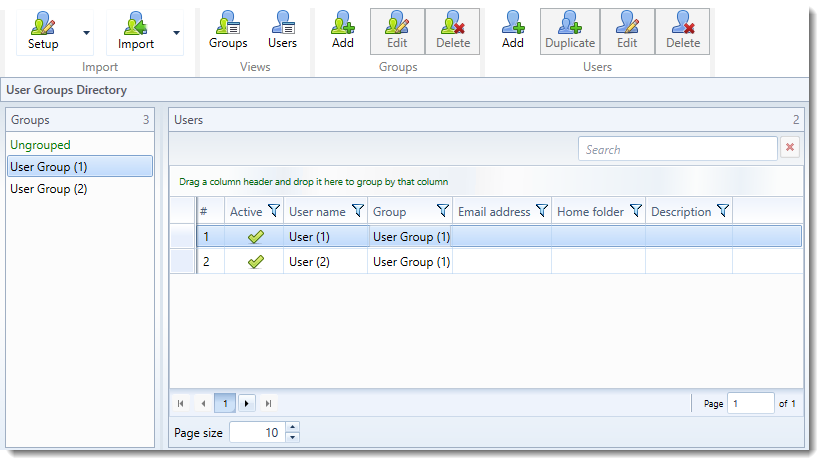
In the “Groups” view only the users that belong to the groups you have selected in the “Groups” list are shown.
The “Users” view looks like this:
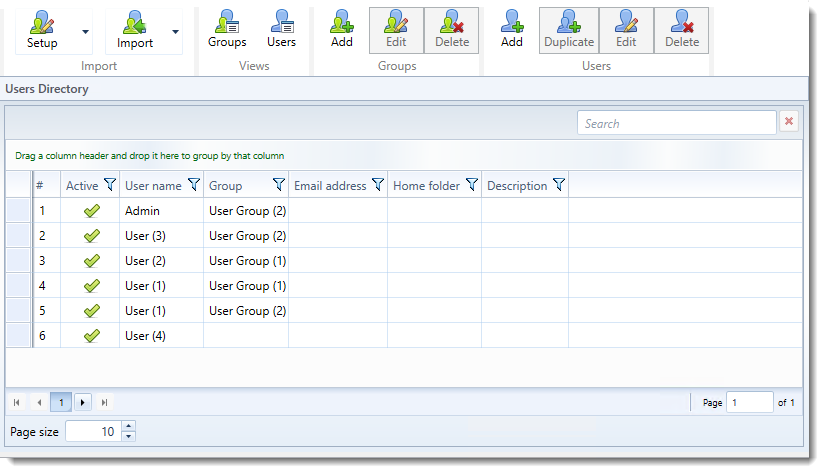
The “Users” view shows all users. Note that users who belong to multiple groups are duplicated in the view for each group to which they belong such as “User (1)” in the screen shot above.
Users who do not belong to a group will appear in the virtual group called “Ungrouped” as shown in the screen shot below.
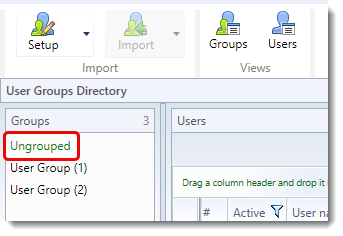
The “Ungrouped” group is a visual grouping mechanism and it cannot be edited. If all users belong to a group the “Ungrouped” group will not appear in the list.
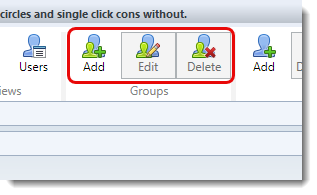
To Add, Edit or Delete a group you can click the respective button in the “Groups” section of the toolbar or in the groups context menu ( Context Menu ):
When you click the “Add” button the following screen appears:
Add user group
When a new group is created it is given the name “User Group” with a number in brackets. This number is normally one higher than the number of existing groups with the same name, unless there is a gap in the numbering in which case the first available number is used.
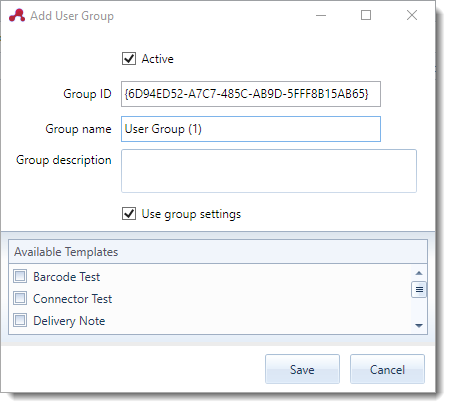
Active
Enables/disables the group. If a group is disabled no user belonging to the group will be able to connect to the ScannerVision Networking Server.
Group ID
The identifier of the group which is assigned automatically when the group is created. This is a read only field.
Group name
A descriptive name for the group.
Group description
A short description of the group. This could be used to provide further information about the group to other ScannerVision administrators.
Use group settings
When this option is enabled users’ templates are configured on the group level. In other words, all users belonging to the group will share the list of templates you select here. If this option is disabled templates have to be configured on a per user basis.
Available Templates
A list of all templates in ScannerVision that have client capture enabled. Select the templates in the list which you want to be available on users in the group. You can re-arrange the order of the templates which will be the order in which they are displayed on the user. To change the order of a template select the template and right click on it to show the context menu. From the context menu you can move the selected template up or down.
It is advisable to select a template icon for every template that will appear for a user as it makes identification of template easier.