Script Picklist
A Script picklist obtains its values by executing a Visual Basic or JScript script. The editor window is shown below:
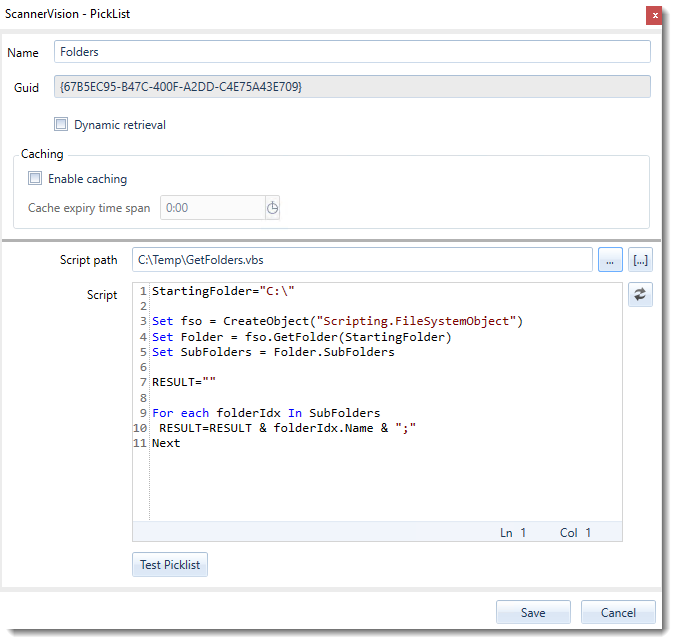
Script path (Required)
The path to the script file to execute. You can select a script file by pressing the “…” button to the right of the Script path edit box. The path may contain ScannerVision metadata tags. To edit the path in the ScannerVision Expression Editor press the “[…]” to the right of the Script path edit box.
Script
If you have selected a Script file it is loaded automatically into the script editor when the picklist editor is opened. If however the Script path contains ScannerVision metadata tags the script cannot be loaded automatically. To load the script press the LoadVbScriptButton button to the right of the script editor. You will be presented with the “Metadata Tag Values” dialog discussed in the “Test Picklist” section below. If you provide values which, when parsed, resolves to an existing file on the system the file is loaded into the script editor.
If the Script path does not contain any ScannerVision metadata tags, any changes you make to the script in the script editor is saved to the file when the “Save” button is pressed.
The values you want displayed on the client should be returned as a semicolon delimited list. For example, if you want to return a list of folders on the server you could write the following script:
StartingFolder="C:\"

Set fso = CreateObject("Scripting.FileSystemObject")

Set Folder = fso.GetFolder(StartingFolder)

Set SubFolders = Folder.SubFolders

RESULT = ""

For each folderIdx In SubFolders

 RESULT = RESULT & folderIdx.Name & ";"

Next
Metadata
ScannerVision metadata can be referenced in your script through the “Values” method of the “Metadata” object. The Values method takes a string parameter that represents the metadata tag you want to reference. To reference the [DATETIME] tag you would write the following:
Metadata.Values("DATETIME")
Value displayed & value returned
The Script picklist editor does not offer the ability to select a value to display and a value to return as SQL and XML picklists do but you can still achieve this result. To do this you have to return the value to display and the value to return as name-value pairs separated by ASCII character 30. The value to display is first then ASCII character 30 and then the value to return. Name-value pairs are separated by a semicolon e.g.
RESULT = "Display value 1" & Chr(30) & "1;" & "Display value 2" & Chr(30) & "2"
With this script the values “Display value 1” and “Display value 2” are shown to the user, but the values “1” or “2” respectively are returned to ScannerVision.
Please refer to the Value displayed and value returned section for an explanation of the significance of the “Column displayed” and the “Column returned”.
Test Picklist
To test that your picklist is configured correctly press the “Test Picklist” button. You will be presented with the “Picklist Results” dialog shown below:
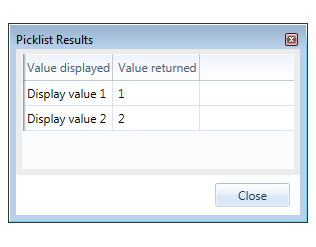
The dialog will show a maximum of 3 rows. Verify that the “Value displayed” and the “Value returned” values are what you expected.
Note
When testing your picklist only Standard ScannerVision metadata tags will be parsed when the script executes. If you reference a metadata tag in your script that does not exist in the context of the picklist editor, the script will not return any results. For example if you are configuring a picklist from within the context of a Global Metadata question, no metadata tags defined in templates will be parsed.