Configuring Barcodes
Reading of 1D and 2D barcodes are supported by ScannerVision and each type is configured separately. To access the configuration screens click the relevant button in the Modules View as shown below:
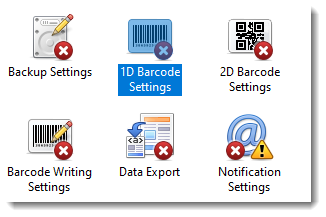
Although 1D and 2D barcodes are configured separately, their settings are exactly the same in all respects except for the particular barcode symbology that is configured. As such, the discussion below focuses on 1D barcodes only but everything applies to 2D barcodes as well.
You can read barcodes in one of two modes. You can let ScannerVision automatically read all the barcodes it can find by selecting the “Automatic barcode recognition” option. The values of the barcodes that are found are written to metadata tags with the following format:
BC + 1D/2D + VALUE + Page number
e.g. BC1DVALUE0, BC1DVALUE2, BC2DVALUE0 etc.
With automatic barcode recognition the barcode engine uses default settings for all barcode symbologies which cannot be modified.
If you configure individual barcode symbologies on the other hand you have control over every setting on a per barcode level. To configure individual barcodes drag the required barcode symbology from the “Available symbologies” list onto an empty spot on the “Barcodes to read” area. If you drag a symbology over an existing one the symbology of the barcode is changed to the new one without affecting any of the other properties and settings.
Since there are many settings you can configure, you can show as much or as little information as you need by collapsing or expanding the “Settings” and “Advanced Settings” groups.
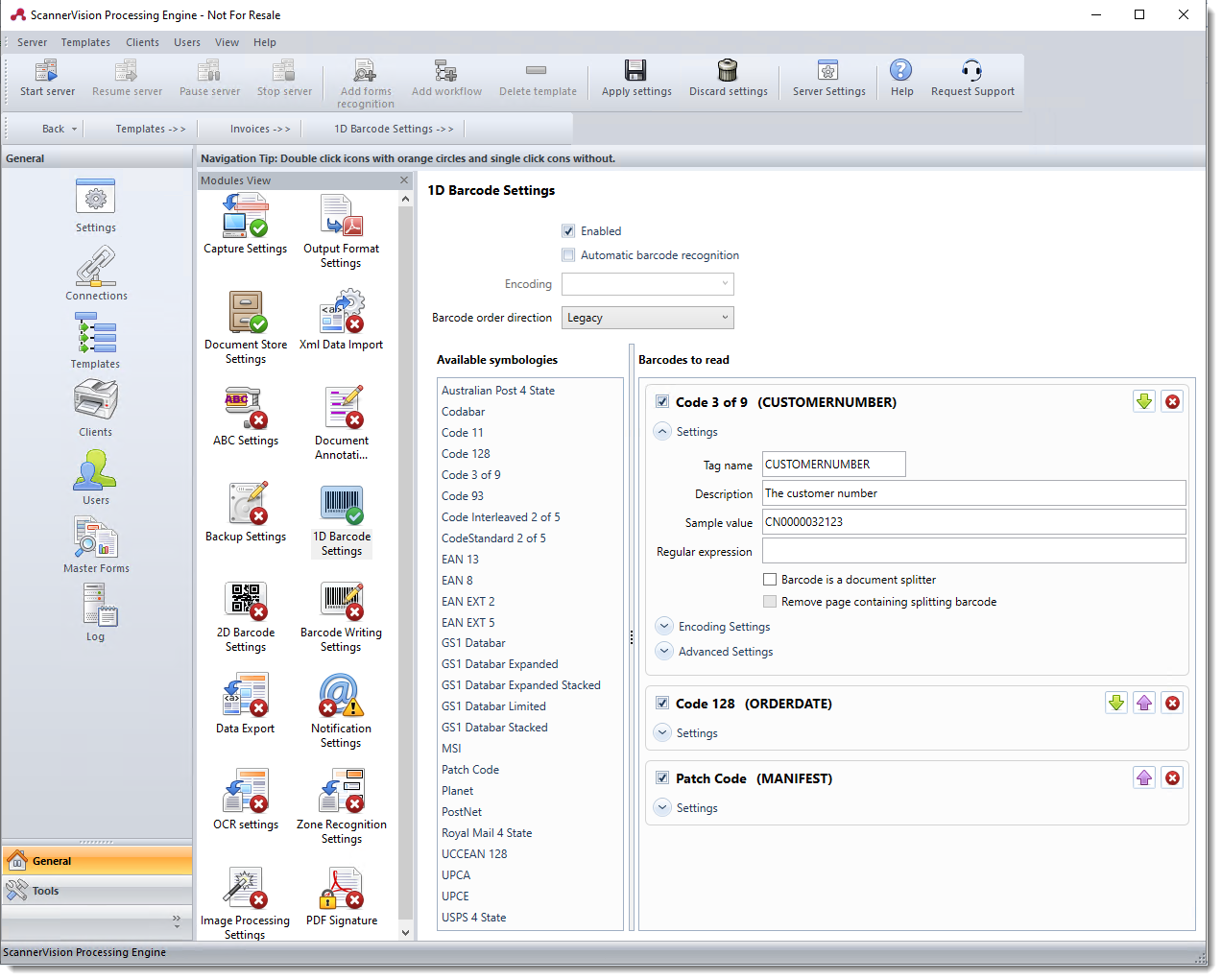
Encoding
Barcode encoding refers to the process of converting human-readable data into a format that can be easily read by barcode scanners. Different encoding types are used to represent information in various barcode formats. It is essential to choose the appropriate encoding type to ensure accurate data retrieval.
Barcode order direction
This setting instructs ScannerVision to scan for barcodes in a specific direction. Refer to barcode ordering for more information.
Enable/Disable
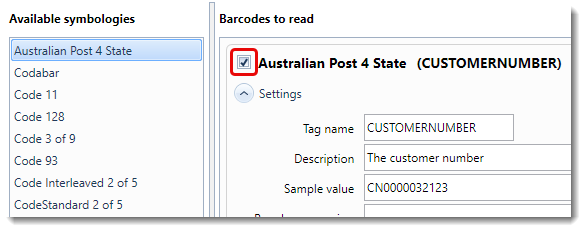
To enable or disable a barcode symbology, select the check box to the left of the symbology name as show below:
Tag name
This is the name of the metadata tag that will hold the content of the barcode.
Description
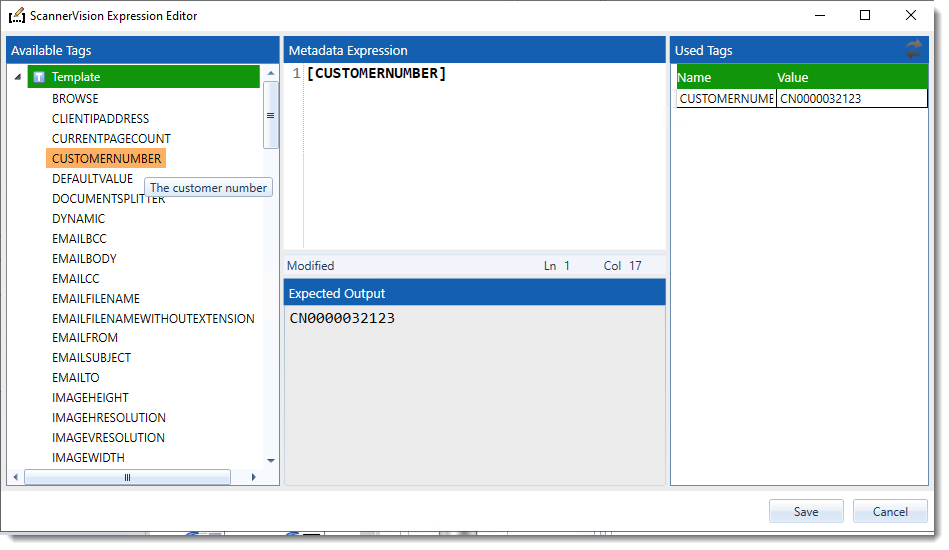
A description of the data that the barcode represents. This description is shown as a tool tip in the ScannerVision Expression Editor when the mouse is hovered over the metadata tag name. You can see this in the screen shot of the ScannerVision Expression Editor below. The tool tip of the CUSTOMERNUMBER tag is “The customer number” which is what was entered in the description field of the barcode.
Sample value
A value that is typical of the data contained in the barcode. This value is assigned as the metadata tag value in the ScannerVision Expression Editor. In the screen shot below you can see that the CUSTOMERNUMBER tag contains the value “CN0000032123”. This value was assigned automatically to the sample value.
Regular Expression
A regular expression can be specified to ensure that the correct barcode value is read. This is useful in situations where more than one barcode of a specific type exists on a page. An example would be where two Code 3 of 9 barcodes are found on a page, one containing an invoice number and the other an order number.
If for example the invoice number starts with “INV” and the order number with “ORD” you can add two Code 3 of 9 symbologies. For the invoice number symbology you would add a regular expression that checks if the data in the barcode starts with the characters “INV” and if it does the value is assigned to the tag. You would do the same for the order number but with the regular expression checking for “ORD” instead.
Barcode is a document splitter
When this option is enabled ScannerVision will split the original document on the page on which the barcode is found. All remaining pages will form part of the new document unless another document splitting barcode is found. By default the page on which the barcode was found is included in the new document as the first page. If you want the page to be excluded select the “Remove page containing splitting barcode” option.
Once the original document has been separated into multiple documents, each new document is passed through the same template again in the order in which they were created. Document splitting will however not be performed on the second pass.
Remove page containing splitting barcode
This option is only available when the “Barcode is a document splitter” check box is selected. When this check box is selected the page on which the splitting barcode was found will not be included in the new document. This option is typically used in situations where barcode separator pages are used to indicate the start of a new document.
Advanced Settings
The Advanced Settings section shown below offers more control over how the barcode is read and will largely determine how successful the barcode engine is with the recognizing of barcodes. In most situations the default settings will yield good results but there are situations where adjusting certain settings may improve the results.
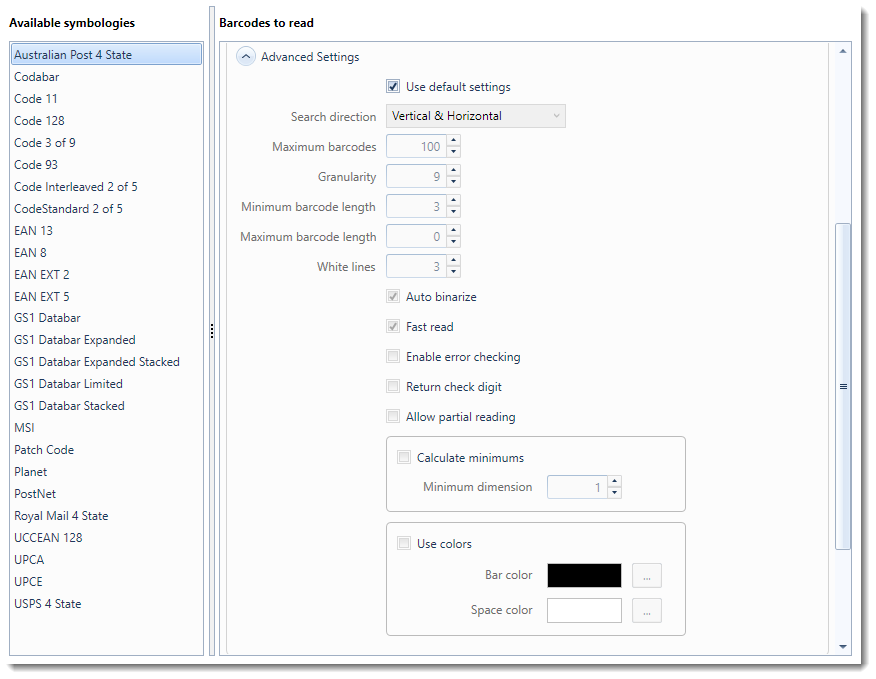
Use default settings
Select this option if you want the barcode engine to use its default settings for this particular symbology. It is recommended that you always try this option first and if you find that the barcode recognition is not working as expected you can change some of the advanced settings.
Search direction
Indicates in which direction the barcode engine searches for barcodes. To cater for pages that are rotated through 90°, 180° or 270°, it is recommended that you choose the “Horizontal & Vertical” option. This will force the barcode engine to search for barcodes in all possible directions. There is a slight performance penalty with this configuration but it will yield more reliable results.
Max Barcodes
Specifies the maximum number of barcodes that will be read per page. A value of 0 means all barcodes are read.
Granularity
Number of scanned lines per column to skip when reading a barcode. With a value of 9 for example each tenth line will be scanned when looking for a barcode. Scanning every line will slow down the search process while skipping too many lines may skip over the barcode. A value of 9 is typical.
Minimum barcode length
The minimum length of a barcode string when searching for a non fixed length bar code.
Maximum barcode length
The maximum length of a barcode string. The maximum value is 63.
White Lines
The number of lines of white space above and below the barcode symbol.
Auto binarize
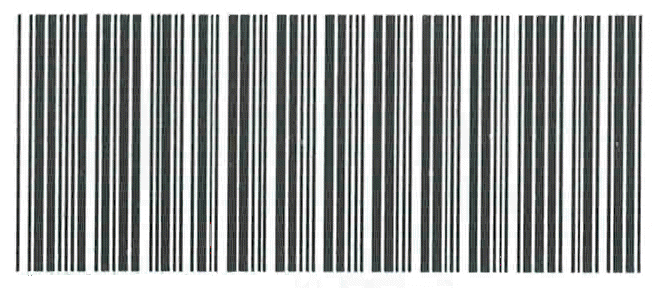
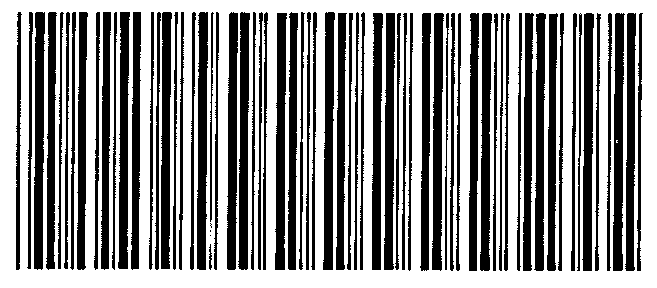
Apply automatic binary segmentation to improve barcode recognition results. The effect of this setting is shown below:
Before binarization:
After binarization:
This command does not support the following image formats:
-
12, 16 or 32 bit grayscale images
-
48 or 64 bit color images
-
Signed data images
Fast read
Employs a fast barcode recognition algorithm which is suited for most barcodes. This option is selected by default.
Enable error checking
Enables the use of the optional check word for validity checking when reading a barcode (if supported). If the validity check fails no barcode is returned.
This option will only have effect when reading barcode symbologies that support the optional check word which include:
- Code 3 of 9 (Code 39)
- Standard 2 of 5 (Industrial 2 of 5)
- Interleaved 2 of 5
- Code 11 (USD-8)
- Codabar
Return Check Digit
When selected the error check digit should be returned as part of the barcode data.
Allow partial reading
If this option is selected then barcodes that could not be read completely such as when error checking fails or when a certain area of the barcode is corrupted, the engine will return the barcode data that it was able to read. There is no guarantee what part of the barcode is read correctly and hence it is not recommended that you enable this option.
Calculate minimums
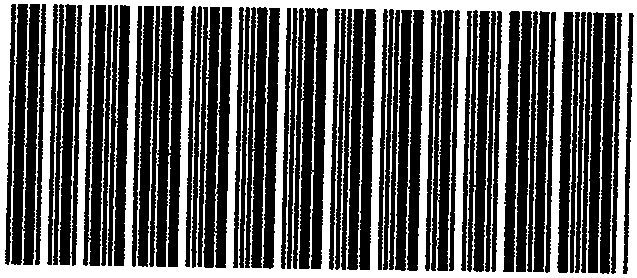
Dilates dark objects by the specified amount. The effect can be controlled by specifying the size of the neighborhood that is used for calculating each pixel value. For example for 2 x 2, set the “Minimum dimension” property to 2. Each pixel is replaced with the minimum value of its neighborhood. A black pixel has a numerical value of 0 while a white pixel has a value of 255. The calculate minimums function will therefore have the effect of filling in blank areas as shown below:
Before minimums calculation:
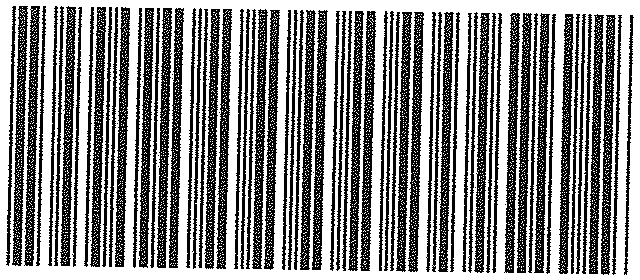
After minimums calculation:
This command supports 12 and 16 bit grayscale and 48 and 64 bit color images. 32 bit grayscale images are not supported.
Use Colors
When barcodes are printed in color the bar color and space color can be specified to improve recognition accuracy.
| Bar Color | The color of the barcode lines. |
| Space Color | The color of the spaces between the barcode lines. |