Zonal Barcodes
Zonal barcode reading offers an alternative way of reading barcodes to the full page barcode reading function described in Reading Barcodes. Zonal barcode reading could in some situations yield a higher success rate. Since a zone defines a region on a page where you expect to find a barcode, the barcode reading engine uses additional techniques to try and recognize and read a barcode if it was unsuccessful after the first pass. Applying these techniques to a whole page is not practical in general because of the associated performance overhead.
After you have loaded a sample document that contains the barcodes you want to read you can perform 2 auto detect functions. You will find the button for these to the right of the toolbar, shown below.
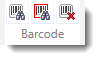
The left button performs auto detection across the entire page that is displayed. A zone is drawn around each barcode that is detected. When a zone is selected, the properties of the detected barcode is updated in the property editor.
The right button performs auto detection within a pre-existing zone. With this function you draw a zone around the barcode that you see on the page and then click this button. ScannerVision will then proceed to detect the barcode in the zone. If a barcode is detected it’s properties are updated in the property editor.
Zone Size
You will notice that the zone that is drawn around an auto detected barcode appears to be much bigger than what you would have expected. An example of this is shown below. The reason for this is to make sure that the barcode engine covers a large enough area within which to perform detection. As mentioned above, the properties of the detected barcode are completed automatically. This includes the coordinates of the zone. By making the zone a bit larger you prevent the scenario where barcodes are missed during processing because of drift. In other words, if a barcode does not always appear in exactly the same place it would still be detected. This is also the reason why barcode zones are allowed to extend beyond the edges of the screen with negative coordinates. This is not an error and processing of the zone will succeed.
It is recommended that when you draw zones manually you do the same.
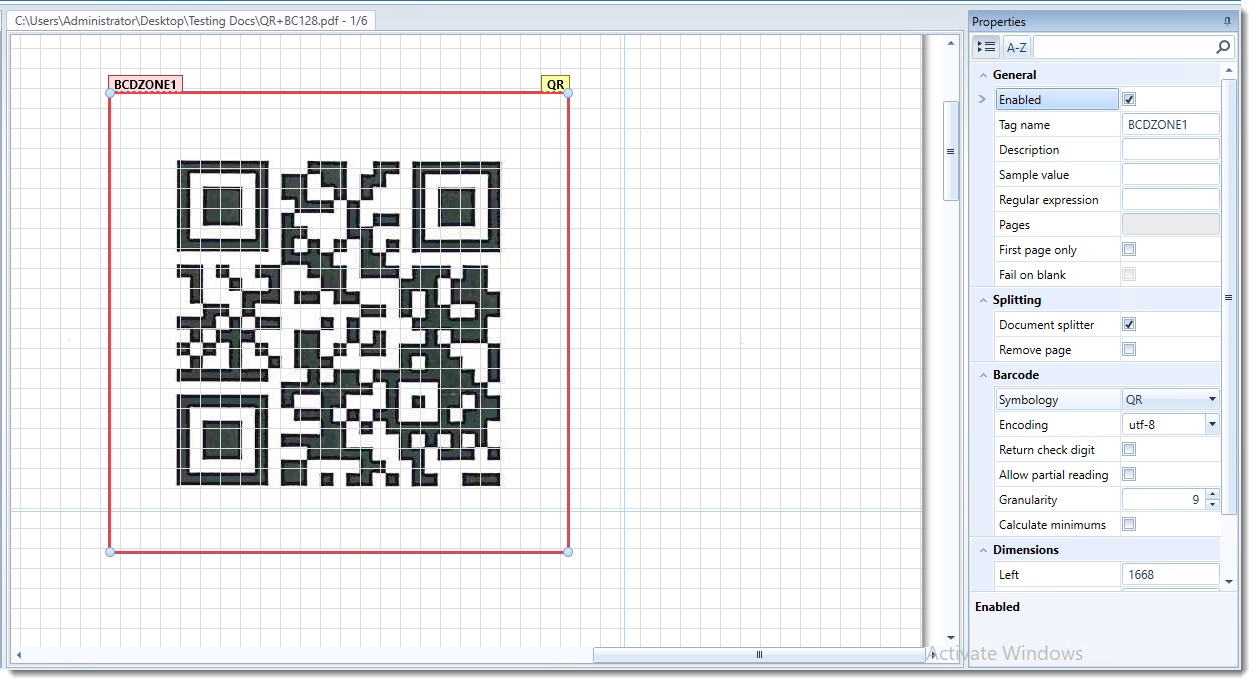
The section which follows highlights properties in the property editor that are not present for Zonal OCR zones. In addition, properties that overlap with the Configuring Barcodes section are not repeated. Please refer to the Configuring Barcodes section for details.
Pages
Specifies the pages on which the zone must be processed. Distinct pages as well as page ranges are supported e.g. “1, 2, 5-10”. You can also add round brackets to ranges if it makes it easier for you to read e.g. “1, 2, (5-10)”. If no page number is provided the zone is processed on every page.
If a zone is marked to be a document splitter you cannot specify page numbers.
Note
If any other form of document splitting is enabled the pages you specify here are relative to the split document and not the original document unless no split occurred.
Document splitter
This allows you to perform document splitting on the page that the barcode is detected which will be the first page of the newly created split document. If you select the “Remove page” option, the page on which the barcode is detected is omitted from the split document.
Remove page
Removes the page on which the barcode is detected from the split document. This option is only available when the “Document splitter” option is selected.
Fail on blank
When selected the template fails if a barcode cannot be detected in the specified zone. This option is only available if you have specified page ranges.