Document Metadata Setup
Document metadata is information that describes a document or enriches the information about a document. Metadata is captured through a set of questions or prompts that are presented to a user once a template has been selected on one of the ScannerVision clients (Desktop or MFP clients). The metadata that is captured this way accompanies the document through the whole ScannerVision processing work flow and it can be used in various ways. It could for example be used to determine the final output destination of the document or it could be used as a key into a database table from where additional information could be obtained. The metadata can also be stored along with the scanned document in a document management system such as SharePoint or DocVolante.
For an in depth discussion of metadata please refer to Appendix A - Metadata.
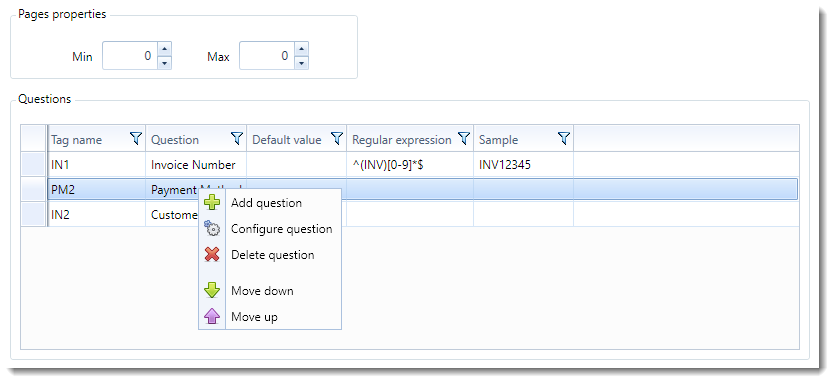
Context menu
When right clicking on the Questions grid the context menu appears with the following commands:
| Add question | Adds a metadata question to a template. |
| Configure question | Configures an existing question. |
| Delete question | Delete a question. |
| Move down | Moves the selected question down.* |
| Move up | Moves the selected question up.* |
*The order in which questions appear in the grid is the order in which they are displayed on the client.
The ScannerVision - Template Question dialog is shown:
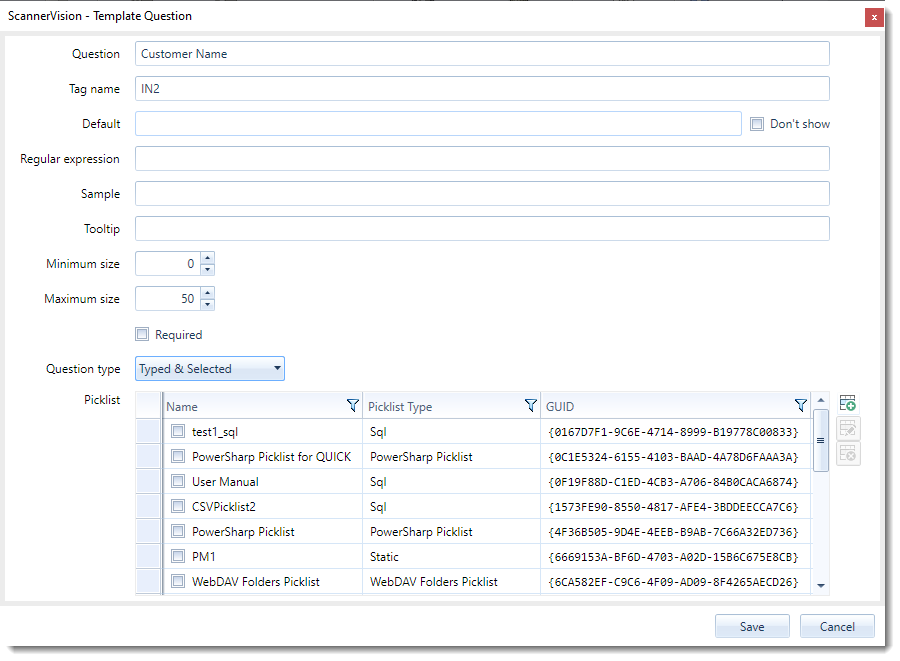
Question (Required)
The prompt or question that is displayed to the user on the client.
Tag name (Required)
The metadata tag name by which this information is identified in the template. This value will appear in the ScannerVision Expression Editor list under the “Template tags” heading.
Default (Optional)
The default answer to the question/prompt if the user does not provide one. The user will see this value in the respective edit field on the client.
Don’t Show (Optional)
Enabling this setting will not display the entered default value on the ScannerVision client. The default value will still be kept as an answer to the question if the user does not provide one.
Regular expression (Optional)
The data that is entered by the user can be validated by specifying a Regular Expression. The client application will try to find a match for the provided regular expression in the data that is entered by the user. If no match is found the user is presented with a message that states that the data that was entered is incorrect. A sample of the correct data is also shown if you provide such in the Sample edit box.
By providing a regular expression, the quality and/or correctness of the captured information can be improved which if left unverified could potentially lead to problems later during the processing of the document.
Sample (Optional)
If a regular expression is provided and the user enters information that does not conform to the regular expression the user is prompted with a message to state that the entered data is not valid. The sample value you specify here is included in the message to show the user what the expected format of the data is.
Tooltip (Optional)
A tooltip that the user can view on the client if they require more information. Similar to the sample value, but will only appear if the user selects the tooltip icon next to the question on the ScannerVision client.
Minimum size (Required)
The minimum number of characters that must be entered by the user.
Maximum size (Required)
The maximum number of characters that can be entered by the user.
Required (Optional)
Indicates that the question is required to be filled in by the user.
Question type (Required)
The selection you make here determines what options the user has for entering information on the client. The different options are:
| Typed | The user is required to manually type in a value. |
| Typed & Selected | The user has the option to either type in a value or to select a value from a drop down list. |
| Selected | The user is required to select a value from a drop down list. |
| Browse | No further information is required. The particular folder which content is served is determined by the "Browse folder" value of the Add/Edit User window (see Users). Alternatively, if authentication is not enabled for a client or client group the "Default" value of the question is used. |
| Browse Picklist | This functionality is implemented by certain connectors such as SharePoint and configuration is specific to each implementation. |
When the “Typed” or “Browse” option above is selected the “Picklists” section is not visible.
Picklists (Required)
The “Picklists” section appears when the “Question type” is either “Typed & Selected” or “Selected”. Please refer to the Creating Picklists section for details on how to create picklists.