Users
The User settings screen is shown below. To add a user, select the group(s) to which the user should belong and press the “Add” button on the toolbar or in the context menu ( Context Menu ).
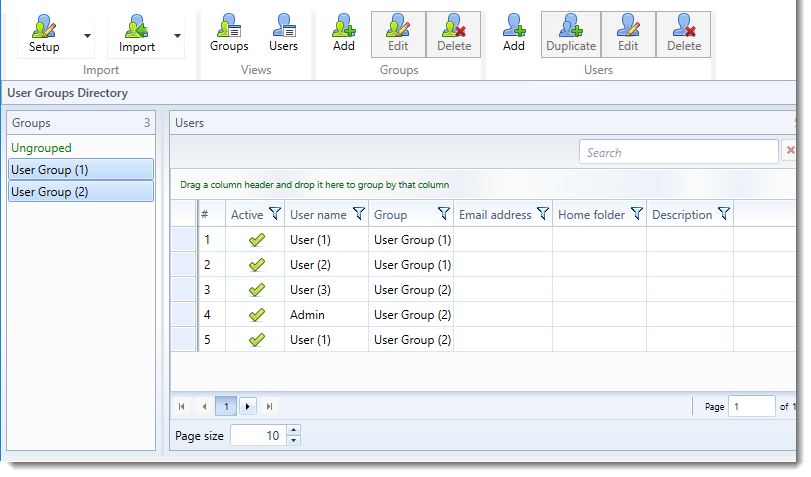
When multiple groups are selected all the users that belong to the selected groups are shown as is seen above. Users that appear multiple times do so only because they belong to multiple groups and not because there are multiple instances of the users in the database. The number of entries in the grid can be controlled by the value in the “Page size” field below the grid to the left. If you have more users than can fit on one page, additional pages are added that you can navigate to by clicking the respective page number (above the “Page size” field) or by entering a page number in the “Page” field to the right below the grid.
You can also search for a user by name by entering a search term in the “Search” edit box above the grid to the right.
When you have multiple groups selected and then add a user, the user will be assigned to the selected groups automatically.
When you click the “Add” button the following screen appears:
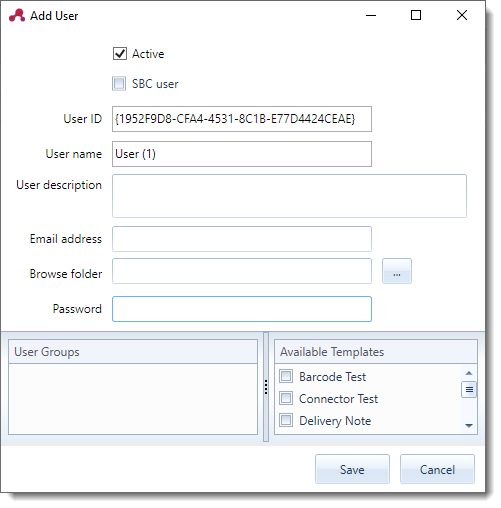
Active
Enables/disables the user. If a user is disabled he/she will not be able to connect to the ScannerVision Networking Server.
SBC User
Enables/disables the user to login on ScannerVision Browser Capture
User ID
The identifier of the user which is assigned automatically when the user is created. This is a read only field.
User name
A descriptive name for the user.
User description
A short description of the user. This could be used to provide further information about the user to other ScannerVision administrators.
Email address
The email address of the user. This could be used in the Email Connector to send the user an email containing relevant information including the scanned document, extracted metadata etc. This value is available in the [USERMAIL] metadata tag.
Browse folder
A folder on the server or a network share that is specific to the user. Documents and captured metadata could be routed here for later retrieval by the user. This value is available in the [USERHOMEFOLDER] metadata tag. This is also the folder which content is served in template questions of type “Browse” (see Document Metadata Setup ).
Available Templates
A list of all templates in ScannerVision that have client capture enabled. Select the templates in the list which you want to be available for users in the group. You can re-arrange the order of the templates which will be the order in which they are displayed for the user. To change the order of a template, select the template and right click on it to show the context menu. From the context menu you can move the selected template up and down.
It is advisable to select a template icon for every template that will appear for a user as it makes identification of a template easier.